
Media Player for LG Smart TV (webOS)
To stream live TV on an LG Smart TV you need a player app on the TV and a playlist from your own provider. IPlayerTV is the player. You install it from the LG Content Store, pair it with your account using a 6-digit code, add your M3U URL or Xtream Codes login, and your channels appear on the TV.
Every device gets its own 7-day free trial, and no card is required to start it. Access is per device, so pairing a second TV starts its own trial rather than sharing the first one.
Get it from the LG Content Store
Not published yet. When it lands: Home → LG Content Store → search "IPlayerTV" → Install.
Download the .ipk
Straight from iplayertv.com — no store account needed. Takes about 25 minutes.
Read the install steps first ↓What you need
- An LG Smart TV running webOS 4.0 or newer (2018 models onward)
- The TV connected to the internet
- An M3U playlist URL or Xtream Codes login from your provider
Setting it up
Get the app onto the TV
Use whichever of the two routes at the top of this page is open — the LG Content Store when the listing is live, or the .ipk we host, installed in Developer Mode. Either way you end up with the same app in the TV's home row.
If your TV is older than 2018 it may run webOS 3.x, which is below the supported baseline — the app targets webOS 4.0 and newer.
Open the app and note the pairing code
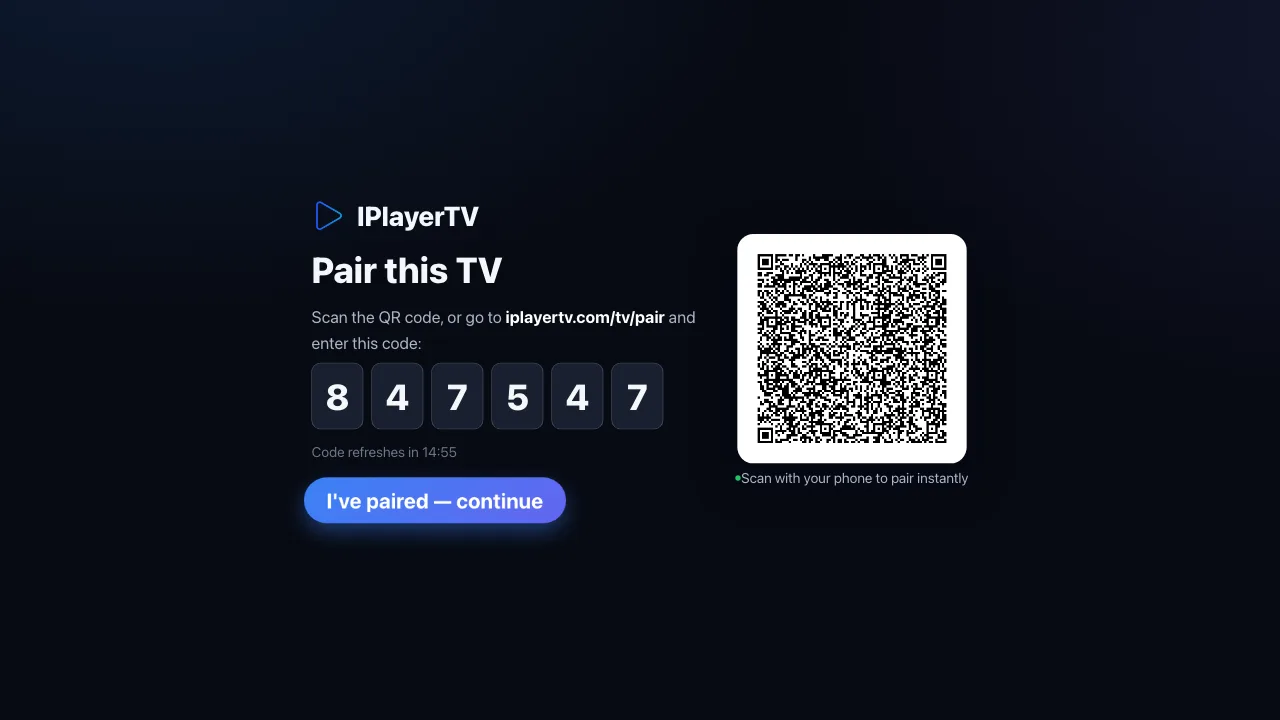
The first time IPlayerTV opens on your LG TV it shows a 6-digit pairing code and a QR code, with a countdown. The code stays valid for about 15 minutes, and the app keeps checking on its own — once you finish the next step it continues by itself.
Enter the code on iplayertv.com/tv/pair
On your phone or computer, go to iplayertv.com/tv/pair and sign in (or create an account). Type in the code. You can also scan the QR code with a phone camera, which opens the same page with the code already filled in.
The LG TV picks up the pairing within a few seconds — there is no need to restart the app.
Add your playlist
IPlayerTV is a player, not a content provider — it ships with no channels. On the dashboard, add the playlist you already have from your provider: either an M3U URL, or an Xtream Codes login (server address, username, password).
The playlist is imported once and cached against your account, so the app opens quickly afterwards rather than re-downloading a large file every time.
Start watching
Back on the LG TV, your channels, films and series appear in the app. Progress, favourites and the last channel you watched are stored on your account, so they follow you to any other device you pair.
What works on webOS specifically
The webOS build is tuned for the Magic Remote and for the D-pad on standard LG remotes: every row scrolls with the arrow keys, Back always returns to where you came from rather than dropping you at the home screen, and the guide is laid out for a screen you are looking at from across the room rather than a phone held at arm's length.
Audio and subtitle tracks switch in place through the TV's built-in video element, so changing language mid-programme does not restart the stream. (The Samsung build takes a different route for the same result — see that page.)
Older LG TVs
LG TVs keep their original browser engine for life — a 2018 set still runs the Chromium 53 engine it shipped with, and it will never receive a newer one. IPlayerTV is built against that baseline deliberately, with a build-time check that fails the release if CSS the old engine cannot run slips into the source.
In practice that means the app behaves the same on a 2018 set as on a 2024 one, rather than working on new TVs and quietly breaking on old ones.
Installing the .ipk by hand
webOS can install an .ipk you supply, but only while the TV is in Developer Mode, and LG deliberately makes that a developer facility rather than a back door for users. You need a free LG account, a companion app on the TV, and a small command-line tool on a computer that is on the same network.
1.Create an LG developer account
Sign up (free) at developer.lge.com with the same email you will use on the TV. There is nothing to pay and no review to pass — the account exists so the TV can tie a developer session to somebody.
2.Turn on Developer Mode on the TV
On the TV, open the LG Content Store and search for the app called "Developer Mode". Install it, open it, and sign in with the account from step 1. Switch Dev Mode ON and let the TV restart.
When it comes back, open Developer Mode again and note the two things it shows you: the TV's IP address, and the passphrase. You need both on the computer.
3.Install the webOS CLI on your computer
The command-line tools need Node.js 18 or newer. Install them once, globally — they are the same tools LG publishes for app developers.
npm install -g @webos-tools/cli
4.Point the tools at your TV
Register the TV as a device named "tv" — the setup command asks for the IP address from step 2, and for the passphrase when it fetches the session key.
ares-setup-device
ares-novacom --device tv --getkey
5.Install the .ipk you downloaded
Run the install from the folder the download landed in, then launch it once from the command line to confirm it starts. After that it lives in the TV's app row like any other app.
ares-install --device tv IPlayerTV-webos.ipk
ares-launch --device tv com.iplayertv.app
6.Pair it with your account
From here the app behaves exactly like the store version: it shows a 6-digit code, you enter it at iplayertv.com/tv/pair, and your playlist is already waiting. Follow the setup steps further down this page.
Stuck on any of this? Mail contact@iplayertv.com with the device and where it stopped, and we will walk through it with you.
Ready to try it on LG Smart TV?
Pair your device and start a 7-day free trial — no card required.
Frequently asked questions
IPlayerTV does not provide, host, resell or index any channels, and it comes with no content of any kind. You supply a playlist you are entitled to use. If you do not already have one, this app is not where you get it.
Any LG Smart TV running webOS 4.0 or newer, which covers models from 2018 onward. Older webOS 3.x sets are below the supported baseline.
Yes. An account can pair as many devices as you like. Access is sold per device, so each one has its own trial and its own subscription, but favourites, progress and playlists are shared across all of them.
No. The playlist lives on your account, not on the device. Pair a new TV and it picks up the same playlist automatically.